Top 5 Excel functions for accountants
A practical run-through of five Excel functions that speed up everyday accounting work — SUM and SUBTOTAL, XLOOKUP, IF, ROUND and SUMIFS — each shown with a worked example and formula.

Xian Hui
16 June 2025
Quick answer
What are the top 5 Excel functions every accountant should know?
Five Excel functions cover most day-to-day accounting work: SUM and SUBTOTAL for adding numbers, XLOOKUP for pulling values from a table, IF for logical tests such as budget comparisons, ROUND for avoiding missing-cent errors, and SUMIFS for totalling amounts that share the same identifier, such as account groups. Each keeps calculations fast and reliable.
Top 5 Excel functions for accountants
Excel remains the workhorse of the finance team, and a handful of functions do most of the heavy lifting. Learning them well will significantly boost your productivity on everyday tasks — from reconciling ledgers to comparing actuals against budget. Below are five functions worth mastering, each shown with a worked example.
The five functions at a glance
| Function | What it does | Example formula |
|---|---|---|
| SUM / SUBTOTAL | Adds numbers; SUBTOTAL can ignore hidden or filtered rows | =SUBTOTAL(9,C2:C10) |
| XLOOKUP | Returns a value from a table based on a lookup key | =XLOOKUP(B9,B2:B6,A2:A6) |
| IF | Returns one result or another based on a logical test | =IF(C2>B2,"Better","Worse") |
| ROUND | Fixes a result to a set number of decimal places | =ROUND(A8*1.07,2) |
| SUMIFS | Adds values that share the same identifier | =SUMIFS(B2:B8,C2:C8,A10) |
What do SUM and SUBTOTAL do?
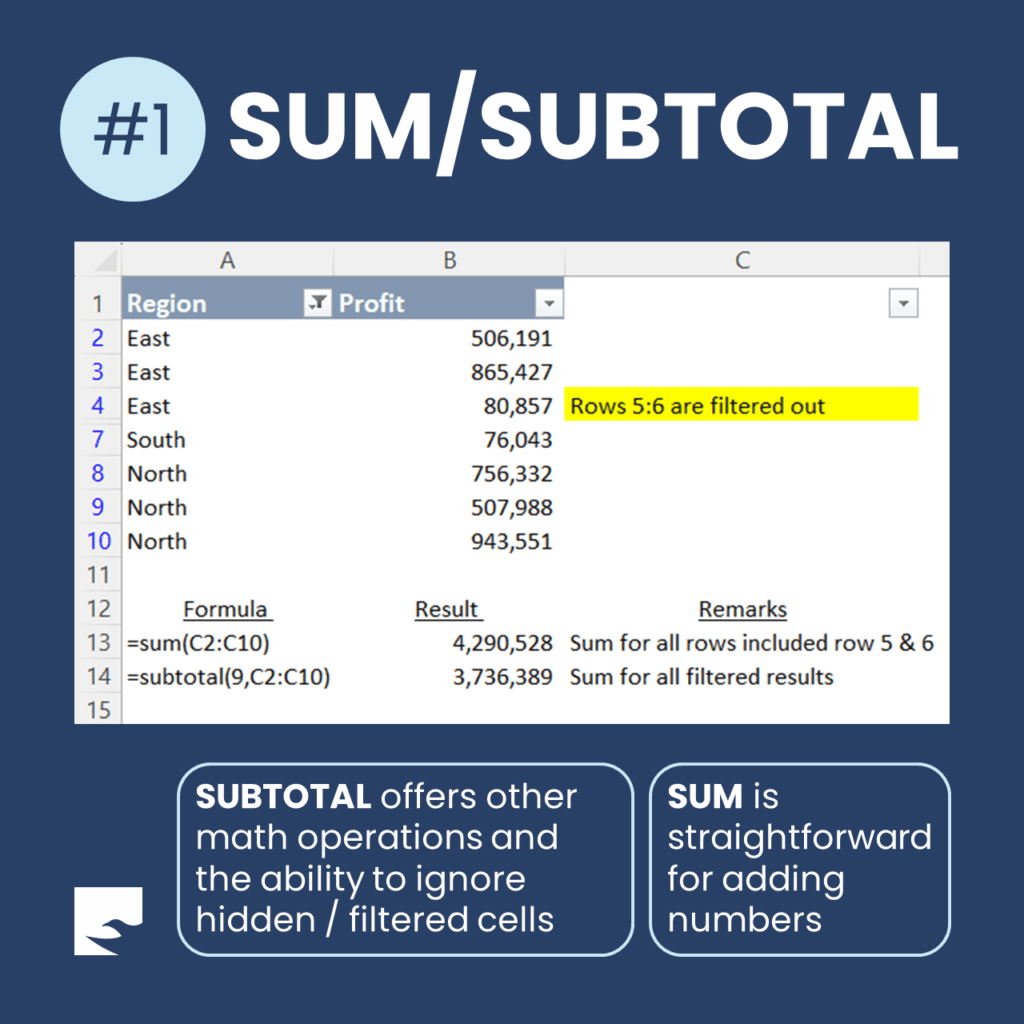
SUM is the most straightforward function for adding numbers together. The catch is that it adds every cell in the range, including rows you have filtered out of view.
SUBTOTAL is the smarter choice when you are working with a filtered list. It can ignore hidden or filtered cells and offers a range of other operations — count, average and more — selected by its first argument.
In the worked example, a Profit column is filtered so that rows 5 and 6 are hidden. The two formulas return different totals:
=SUM(C2:C10)          →  4,290,528   (includes the hidden rows 5 and 6)
=SUBTOTAL(9,C2:C10)   →  3,736,389   (only the rows left after filtering)
The argument 9 tells SUBTOTAL to add the visible cells. Use SUM when you want everything; use SUBTOTAL when you want only what is on screen.
See the Microsoft reference for SUBTOTAL for the full list of operation codes.
How does XLOOKUP help with account lookups?
XLOOKUP returns a value from a table based on a key you supply. It has three advantages that make it well suited to accounting data:
- Simplicity: it does not require selecting the entire table, only the lookup column and the return column.
- Flexibility: it can look to the left or the right of the lookup column, whereas VLOOKUP can only look to the right.
- Exact match by default: it saves keystrokes in most accounting contexts, where an exact match is what you want.
In the example, a general ledger listing is searched by GL code. The formula finds code 79011 and returns the matching account name:
=XLOOKUP(B9,B2:B6,A2:A6) → "Internet & telephone"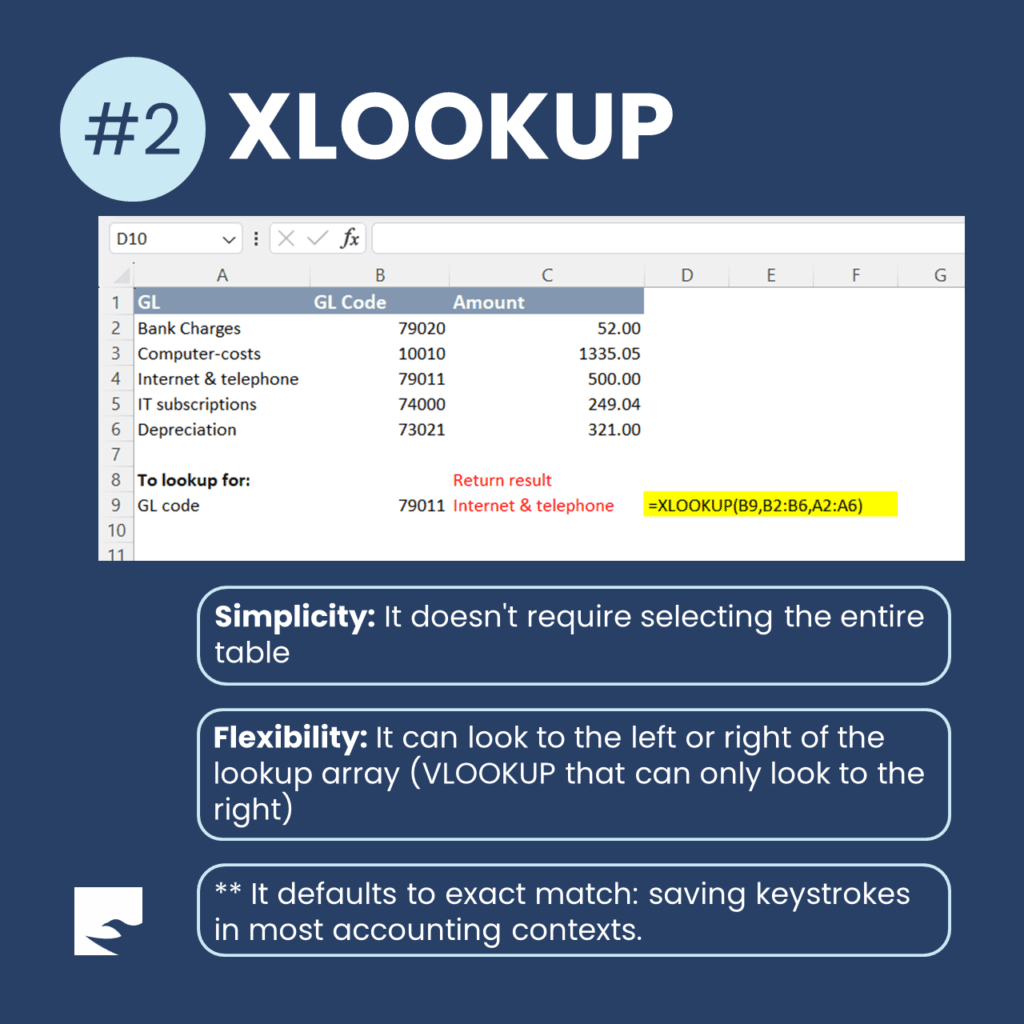
If you are weighing up which lookup function to standardise on, our guide to XLOOKUP versus VLOOKUP sets out the trade-offs in full. For more advanced needs, see how to run a lookup on multiple criteria or a two-dimensional lookup. Read the Microsoft reference for XLOOKUP for the optional arguments.
When should you use the IF function?
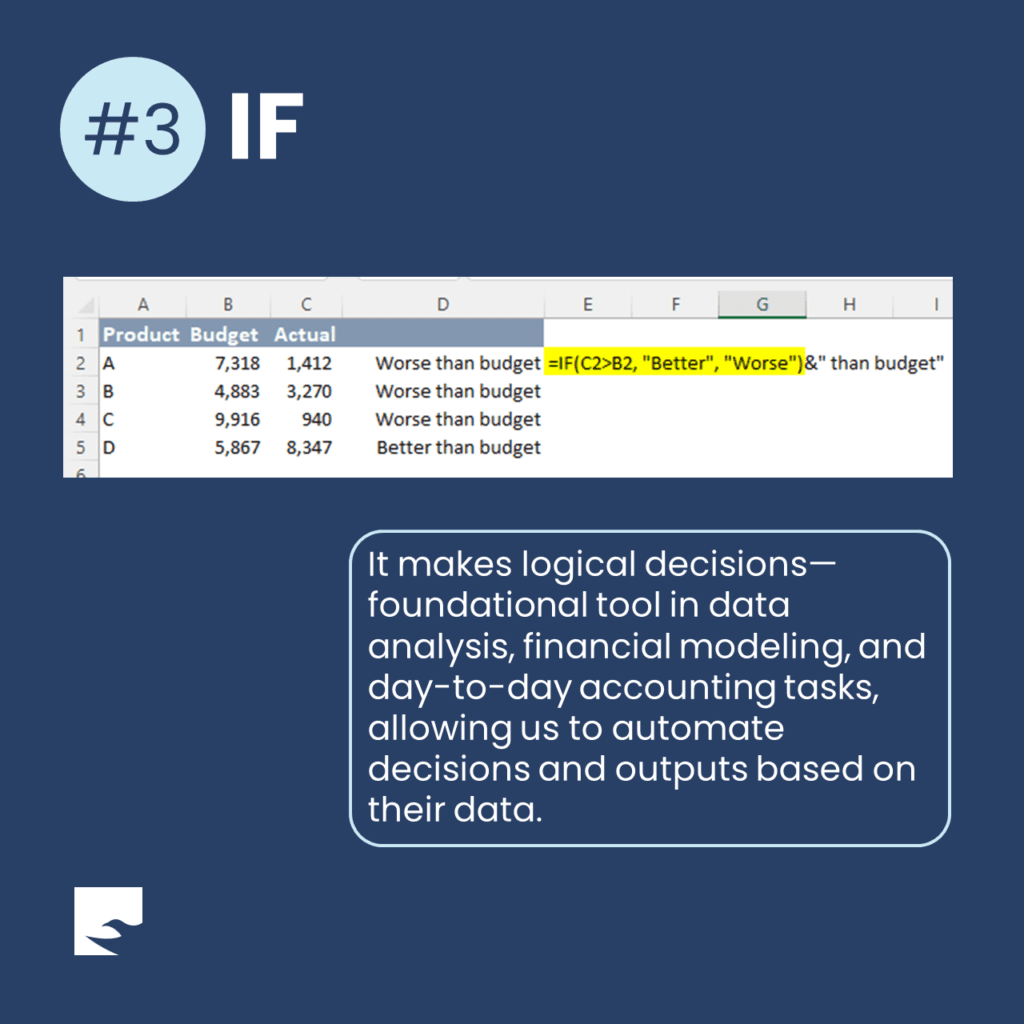
IF makes a logical decision: it returns one value when a test is true and another when it is false. It is a foundational tool in data analysis, financial modelling and day-to-day accounting tasks, because it lets you automate decisions and outputs based on your data.
The example compares actual figures against budget and joins the result to a label using the & operator:
=IF(C2>B2,"Better","Worse")&" than budget"Where the actual beats the budget the cell reads "Better than budget"; otherwise it reads "Worse than budget". Read the Microsoft reference for the IF function to nest tests or combine IF with other functions.
Why does ROUND matter for cents?
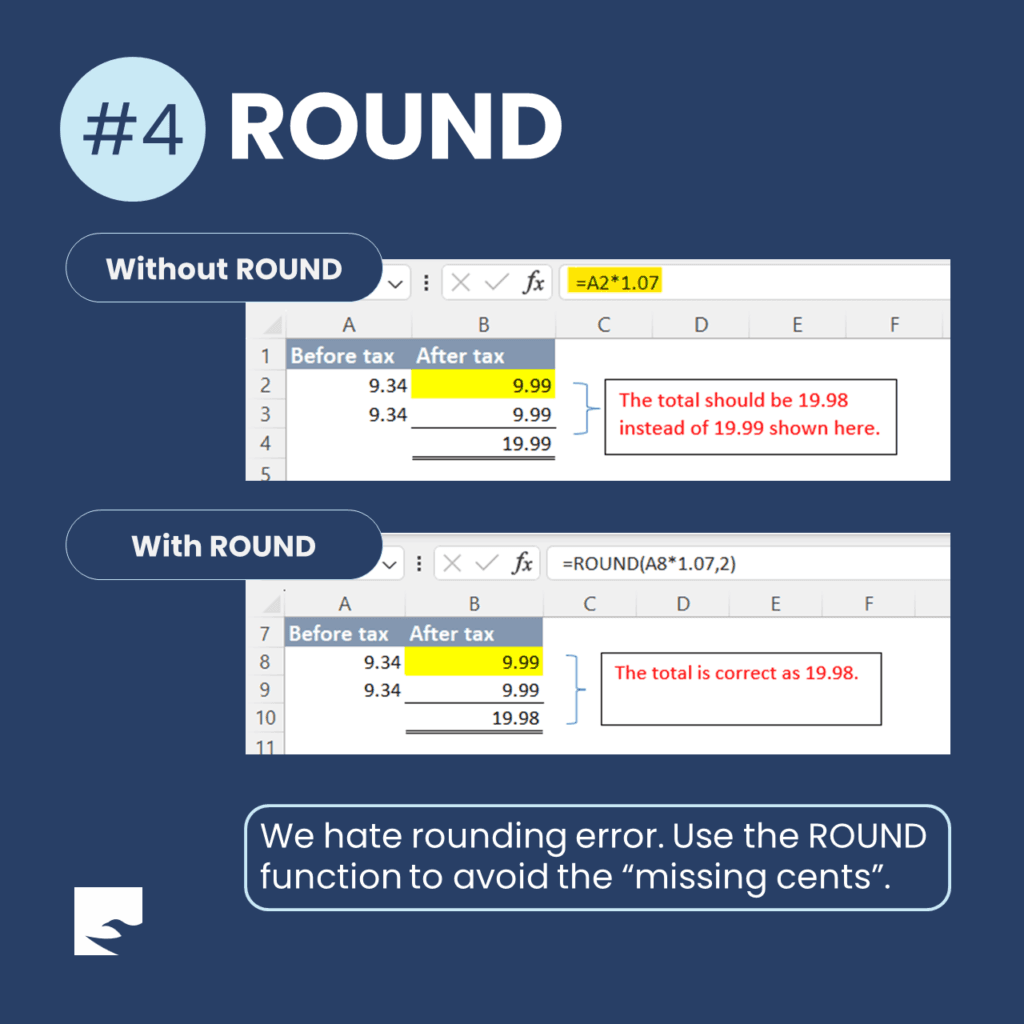
Rounding errors are a common source of frustration. When Excel multiplies figures — for instance applying a 7% rate — it keeps the unseen decimals, so a column of amounts can appear not to add up.
In the example, two lines calculated with =A2*1.07 each display as 9.99, yet the total shows 19.99 when it should be 19.98. Wrapping the same calculation in ROUND fixes each line to two decimal places and the total comes out correctly:
=A2*1.07          →  total displays 19.99  (the "missing cent")
=ROUND(A8*1.07,2) →  total is correct at 19.98
Use ROUND wherever a calculated figure feeds into a total that must foot exactly. See the Microsoft reference for the ROUND function for related functions such as ROUNDUP and ROUNDDOWN.
What is SUMIFS used for?
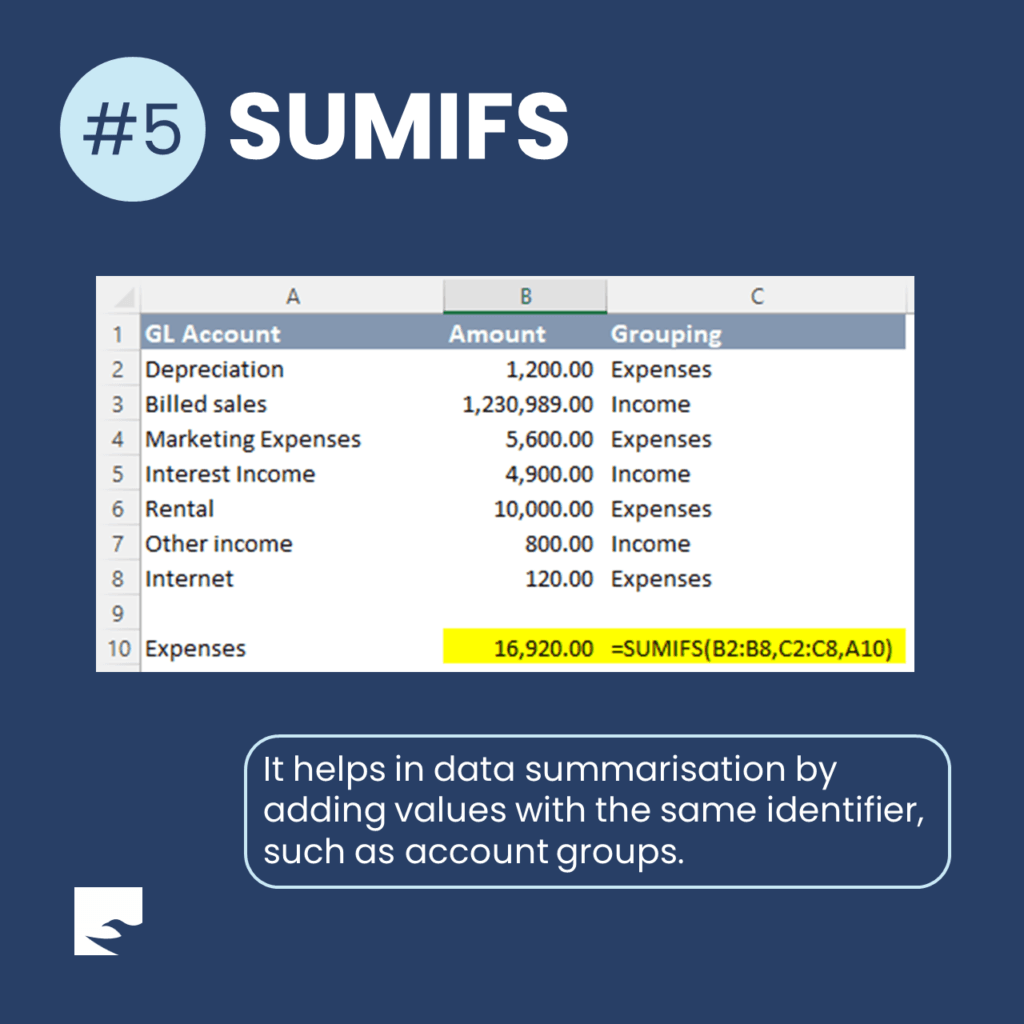
SUMIFS adds up values that share the same identifier, which makes it ideal for summarising ledger data by account group. You give it the range to add, the range to test, and the value to match.
In the example, a list of accounts is tagged as either Income or Expenses. SUMIFS totals only the amounts grouped as expenses:
=SUMIFS(B2:B8,C2:C8,A10) → 16,920.00 (all rows grouped as "Expenses")Because it can take several criteria, SUMIFS scales neatly as your grouping rules grow. Read the Microsoft reference for SUMIFS to add further conditions.
Which function should you learn first?
If you are building the habit, start with SUM for adding numbers, then add IF and XLOOKUP, which give the biggest gain by letting you look up values and automate decisions across large data sets. ROUND and SUMIFS then keep your totals accurate and your summaries clean. Together they form a dependable toolkit for reconciliations, management accounts and budget reviews.
Frequently asked questions
This information has been prepared for general informational purposes only and is not intended to be relied upon as accounting, tax, or other professional advice.
Related articles
articles
Advanced Lookup: Wildcards
How accountants use Excel wildcards — the asterisk and question mark — to match account names and codes by pattern in SUMIF, VLOOKUP and XLOOKUP formulas.
articles
Dynamic Array Formulas in Excel: Unleashing the Power
How Excel dynamic array formulas such as FILTER and XLOOKUP spill results across cells, so accountants can build scalable, error-resistant templates and audit working papers.
articles
Multiple Criteria VLOOKUP Guide
How to run a lookup on more than one criterion in Excel — by combining fields into a single identifier, or by using functions built for multiple criteria such as SUMIFS and FILTER.