XLOOKUP or VLOOKUP?
A practical comparison of XLOOKUP and VLOOKUP for accountants — syntax, flexible lookup arrays, cleaner error handling, match modes, and when each function still wins.

Xian Hui
23 June 2025
Quick answer
Should accountants use XLOOKUP or VLOOKUP?
For most accounting work, XLOOKUP is the better choice: it needs fewer keystrokes, lets the lookup and return arrays sit in any position, handles missing values with a built-in if_not_found argument, and defaults to an exact match. VLOOKUP still wins for simple two-dimensional lookups and when colleagues or clients use older Excel versions that do not support XLOOKUP.
XLOOKUP or VLOOKUP?
Written by Ng Xian Hui, Founder of Backbone. Originally published on ISCA's Chartered Accountants Lab.
Accountants are big fans of lookup functions. Outside of accounting software, we handle and process financial data that moves from one worksheet to another before finally appearing in financial reports. Lookup functions matter because they prevent the multiple entry of the same data, which boosts both accuracy and efficiency.
But which lookup function is best in the accounting world, and are you using it to its full potential? Let's explore and compare — or, if the goal is to remove the manual work altogether, automate the report assembly rather than rebuild it each period.
Key takeaways
- XLOOKUP is a newer function, available in Microsoft 365, Excel 2021 and the web version. Compared to VLOOKUP, it requires fewer keystrokes and offers more precise control over its behaviour.
- XLOOKUP is more efficient in many ways, but compatibility matters — check the Excel versions your colleagues and clients use, and how familiar they are with the function, before switching.
XLOOKUP vs VLOOKUP at a glance
| Feature | VLOOKUP | XLOOKUP |
|---|---|---|
| Availability | All Excel versions | Microsoft 365, Excel 2021, web only |
| Lookup & return arrays | Single table array + column index | Separate arrays, any position |
| Inserting a column breaks it? | Yes | No |
| Value not found | Needs IFERROR wrapping | Built-in if_not_found argument |
| Default match | Approximate (must set to FALSE) | Exact |
| Two-dimensional lookups | Simpler | Needs INDIRECT/OFFSET (volatile) |
What does the syntax look like?
XLOOKUP is available in Microsoft 365, Excel 2021 and the web version (see Microsoft's XLOOKUP documentation). Here is how you write it:
=XLOOKUP(lookup_value, lookup_array, return_array, [if_not_found], [match_mode], [search_mode])The older VLOOKUP is written like this:
=VLOOKUP(lookup_value, table_array, col_index_num, [range_lookup])XLOOKUP allows more parameters (six) compared to VLOOKUP (four), but both require three mandatory arguments.
How do the lookup arrays differ?
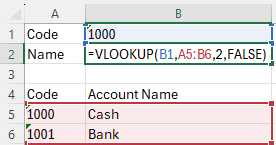
With VLOOKUP, you select the lookup table by referring to the entire table (table_array) and specify the column Excel should return the value from (col_index_num). This approach has several shortcomings:
- The lookup array must always be in the leftmost column of the referenced table. If it sits to the right of the return array, you have to restructure the table — a few extra minutes every time.
- If you insert a column between the lookup column and the return array after writing the function, the return array stays pointed at the old column number, because
col_index_numdoes not adjust automatically. The result is an incorrect output. - It is also worth mentioning: counting columns is tedious.
XLOOKUP fixes this by taking the lookup array and return array as separate arguments. The lookup array no longer needs to be the leftmost column, and because each array is selected by pointing at exact columns, inserting or moving columns does not disrupt the function.
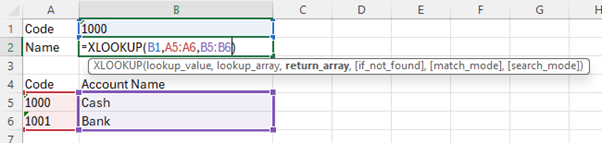
In a less common scenario, the two arrays in XLOOKUP do not even need to be on the same worksheet.
XLOOKUP is often described as a replacement for VLOOKUP, but it is not a complete substitute in every accounting context. For two-dimensional lookups — such as retrieving an account balance by month — VLOOKUP remains the better option because of its straightforward approach to that data structure. Repeating that lookup every period is also the kind of task worth automating in the month-end close.
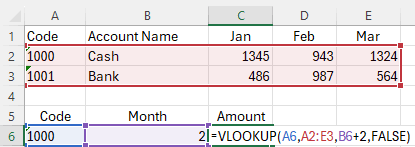
XLOOKUP can handle similar tasks using INDIRECT or OFFSET, but both are volatile functions. Volatile functions recalculate more often than a normal function such as MATCH (often paired with VLOOKUP for two-dimensional lookups). That frequent recalculation can slow down large, complex workbooks — worth considering at scale.
What if an entry isn't found?
When performing lookups, you will not always find a matching entry. Instead of Excel returning an error like #N/A — which can cause dependent calculations to fail — it is often more useful to show an empty cell, a zero, or a custom message like "Account not found!". With VLOOKUP, that means nesting the function inside IFERROR.
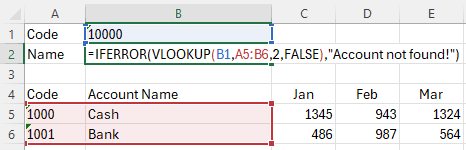
XLOOKUP simplifies this considerably. Its dedicated if_not_found argument lets you specify exactly what to return when there is no match — no extra IFERROR needed, and simpler formulas.
Match mode or range lookup?
The last argument of VLOOKUP is optional, but in accounting it almost always needs to be set to FALSE or 0 for an exact match. If omitted, Excel defaults to TRUE (an approximate match), which is rarely suitable for our use cases — so the "optional" argument is effectively mandatory.
XLOOKUP's match mode offers four choices, and the default is already an exact match. That default makes XLOOKUP more efficient for accounting, because you can skip the argument entirely — fewer keystrokes, simpler formulas.
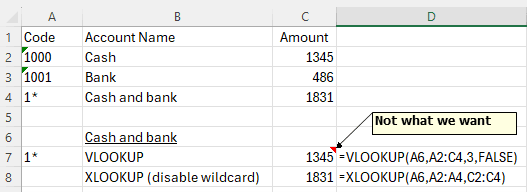
VLOOKUP can also work with wildcards like * and ?. That is occasionally useful, but wildcards in a lookup array can complicate things. XLOOKUP disables wildcard lookups by default, letting you enable them only when needed.
The search_mode argument is not commonly used in accounting contexts, so we will skip it here.
Does XLOOKUP work in every version of Excel?
Before you replace every VLOOKUP with XLOOKUP, consider compatibility. XLOOKUP is only available in newer versions such as Microsoft 365 and Excel 2021. If your colleagues, boss or clients still use older versions, they will not be able to use spreadsheets that rely on XLOOKUP.
Make sure your co-workers are familiar with XLOOKUP before you switch, too. It prevents confusion and smooths the transition across the team.
So, which should accountants use?
XLOOKUP is the stronger choice for accountants: fewer keystrokes and more precise control over its behaviour. Unless you are dealing with two-dimensional lookups — where VLOOKUP can still be simpler — it is worth moving to XLOOKUP where your Excel version allows.
Frequently asked questions
This information has been prepared for general informational purposes only and is not intended to be relied upon as accounting, tax, or other professional advice.
Related articles
articles
Advanced Lookup: Wildcards
How accountants use Excel wildcards — the asterisk and question mark — to match account names and codes by pattern in SUMIF, VLOOKUP and XLOOKUP formulas.
articles
Dynamic Array Formulas in Excel: Unleashing the Power
How Excel dynamic array formulas such as FILTER and XLOOKUP spill results across cells, so accountants can build scalable, error-resistant templates and audit working papers.
articles
Multiple Criteria VLOOKUP Guide
How to run a lookup on more than one criterion in Excel — by combining fields into a single identifier, or by using functions built for multiple criteria such as SUMIFS and FILTER.