Advanced Lookup: Wildcards
How accountants use Excel wildcards — the asterisk and question mark — to match account names and codes by pattern in SUMIF, VLOOKUP and XLOOKUP formulas.

Xian Hui
7 July 2025
Quick answer
How do accountants use wildcards in Excel lookup and SUMIF formulas?
A wildcard is a character that stands in for others when Excel matches text. Excel has two: the asterisk, which matches any number of characters, and the question mark, which matches exactly one. Accountants use them in functions like SUMIF, VLOOKUP and XLOOKUP to group and total similar accounts by pattern, rather than listing every account name or code by hand.
Advanced Lookup: Wildcards
Written by Ng Xian Hui, Founder of Backbone. Originally published on ISCA's Chartered Accountants Lab.
In card games, a wildcard can stand in for any other card. In computing, wildcards do something similar: they help us move beyond exact matches. A wildcard character can represent one or more other characters, which makes lookups, filters and searches far more flexible.
Accountants are usually well organised. Account codes and names tend to follow defined numbering or naming conventions, and transaction descriptions and report captions often follow consistent patterns. By working with those patterns instead of exact values, we can write cleaner formulas, keep a clearer working paper structure, and build templates that are easier to scale.
Key takeaways
- Wildcards are simple yet powerful tools in Excel. They let accountants work with patterns instead of exact values.
- They make formulas more flexible and scalable, and are a practical shortcut well worth mastering.
- Wildcards are supported in many Excel formulas, including SUMIF and SUMIFS, VLOOKUP and XLOOKUP.
What is a wildcard in Excel?
A wildcard is a character that stands in for one or more other characters when Excel matches text. Instead of asking Excel to find an exact value, you describe the shape of the value you are looking for and let the wildcard fill in the rest.
This matters for accountants because so much of our data follows a pattern. When account names share a prefix or codes share a structure, a wildcard lets one formula do the work that would otherwise take several.
Which wildcards does Excel support?
Excel supports two wildcards. They are powerful when used well:
| Wildcard | Meaning | Example match |
|---|---|---|
* | Any number of characters (or none) | 112* matches 112, 11200 and 112-A |
? | Exactly one character | 1?200 matches 11200 and 13200, but not 1220 |

Note: Wildcards only work with text. If your account codes or invoice numbers are stored as numbers, convert them to text first. A good rule of thumb: if you do not perform arithmetic on the values, store them as text.
Our favourite lookup functions — XLOOKUP, VLOOKUP, HLOOKUP and MATCH — as well as conditional functions such as COUNTIF, COUNTIFS, SUMIF and SUMIFS, all support wildcards. Some functions need specific arguments, such as exact match mode, for wildcards to work. Even Ctrl + F (Find) supports wildcards, which allows flexible searching across a workbook.
How do you use the "*" wildcard to sum similar accounts?
The * wildcard matches any number of characters. It is the tool to reach for when several accounts share a common name.
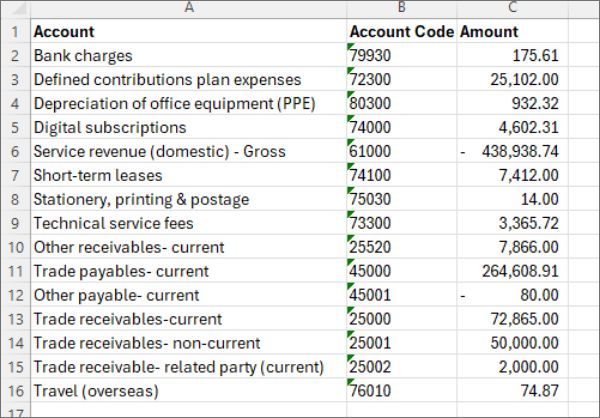
In the trial balance below, you have columns for Account, Account Code and Amount. Suppose you want the total for Trade Receivables — both current and non-current. These accounts may appear under different names and codes, such as:
- 25000 Trade receivables – current
- 25001 Trade receivables – non-current
- 25002 Trade receivables – related party (current)
Avoid formulas that add up individual cells by hand. Even with a lookup or SUMIF, a formula without wildcards quickly becomes long and hard to maintain:
= SUM(
    SUMIF(AccountNameRange, "Trade receivables – current",       AmountRange),
    SUMIF(AccountNameRange, "Trade receivables – non-current",   AmountRange),
    SUMIF(AccountNameRange, "Trade receivables – related party", AmountRange)
    )
Every time a new trade receivables account is added, you have to update the formula again. That is neither efficient nor scalable, and stringing together a SUMIF for each separate criterion only makes it harder to read.
All of these accounts share a common prefix: "Trade receivables". Instead of a separate SUMIF for each name, use the * wildcard to match every row where the account name starts with that phrase:
=SUMIF(AccountNameRange, "Trade receivables*", AmountRange)This captures any account whose name begins with "Trade receivables", no matter what follows. The * matches everything after the prefix — spaces, hyphens or extra text — which makes the formula flexible and future-proof.
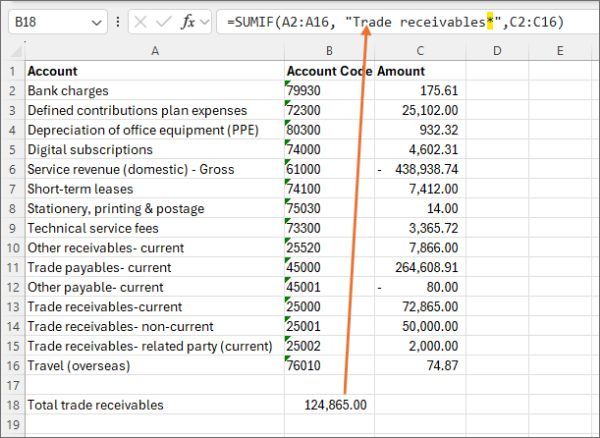
In the example, the formula returns 124,865.00 — the sum of the three trade receivables balances of 72,865.00, 50,000.00 and 2,000.00. It is a simple, effective way to group similar accounts, as long as the naming is consistent.
How does the "?" wildcard match a fixed code pattern?
Use the ? wildcard when your account codes follow a fixed format. The ? matches exactly one character, so it is ideal for pinning down specific positions in a structured code.
In the trial balance, all trade receivables accounts have five-digit codes starting with 250. To capture any account that starts with 250 followed by two more characters, use:
=SUMIF(AccountCodeRange, "250??", AmountRange)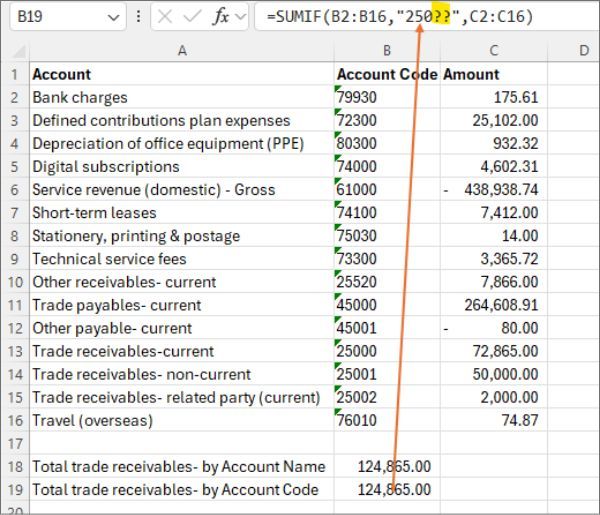
This includes only codes with exactly two characters after 250 — that is, 25000 to 25099. Matching by code returns the same 124,865.00 as matching by name. It is clean, scalable and well suited to structured account coding.
Where do wildcards work in Excel?
Wildcards are supported across several Excel formulas. Here is where and how to use them.
SUMIF and SUMIFS
These work with wildcards by default — no special setting is needed, as the earlier examples show.
VLOOKUP
VLOOKUP also supports wildcards by default. Make sure the final argument, range_lookup, is set to FALSE for an exact match, as required for non-numerical lookups.
XLOOKUP
XLOOKUP supports wildcards only when you turn on match mode 2. If you are weighing up XLOOKUP against VLOOKUP for a template, factor in how each one handles wildcard matching before you commit.
The same thinking extends to more advanced patterns, such as a two-dimensional lookup that retrieves a value by both row and column.
What if you need to search for a literal "*" or "?"?
If you ever need to find the actual characters * or ?, Excel requires a tilde (~) before them — for example, ~* matches a real asterisk. Relying on this can get messy and confusing, though. A better approach is to avoid wildcard characters in your naming conventions altogether. That keeps your lookup keys clean and consistent, especially when building formulas that need to scale.
Conclusion
Wildcards are simple yet powerful tools in Excel. They let accountants work with patterns instead of exact values.
Whether you are summing trade receivables, filtering current assets, or running a quick lookup based on part of an account name, wildcards like * and ? make your formulas more flexible and scalable. For accountants working with real-world data, they are a practical shortcut well worth mastering.
Frequently asked questions
This information has been prepared for general informational purposes only and is not intended to be relied upon as accounting, tax, or other professional advice.
Related articles
articles
Dynamic Array Formulas in Excel: Unleashing the Power
How Excel dynamic array formulas such as FILTER and XLOOKUP spill results across cells, so accountants can build scalable, error-resistant templates and audit working papers.
articles
Multiple Criteria VLOOKUP Guide
How to run a lookup on more than one criterion in Excel — by combining fields into a single identifier, or by using functions built for multiple criteria such as SUMIFS and FILTER.
articles
Two-Dimensional Lookup
A step-by-step guide to two-dimensional lookups in Excel: combine VLOOKUP with MATCH to retrieve a value by row and column, keep the formula dynamic, and tidy it with nesting.