Artificial Intelligence in Excel
How accountants can push Excel further with artificial intelligence, from built-in tools such as Flash Fill and Analyze Data to third-party AI services connected through APIs and add-ins.

Xian Hui
23 June 2025
Quick answer
How can accountants use artificial intelligence in Excel?
Accountants can use artificial intelligence in Excel in two main ways. The first is through built-in AI features such as Flash Fill and Analyze Data, which recognise patterns and suggest insights without any coding. The second is by integrating third-party AI services through APIs or add-ins, which add advanced capabilities such as natural language processing and transaction categorisation that go beyond Excel's own tools.
Artificial Intelligence in Excel
Written by Ng Xian Hui, Founder of Backbone. Originally published on ISCA's Chartered Accountants Lab.
Excel is the go-to tool for most accountants. Whether it is crunching numbers, performing analysis or organising data, accountants rely heavily on Excel to complement the tasks done in accounting software.
But what if artificial intelligence, or AI, often touted as a game-changer for the accounting sector, were integrated into Excel? Could it improve efficiency significantly? The answer, if you identify the right use case, is a resounding "yes".
In this article, we explore how AI can be leveraged in Excel, the built-in functionality already available, and how integrating third-party AI services can push Excel's capabilities even further.
Key takeaways
- Artificial intelligence can be leveraged in Excel to push the tool's capabilities even further, making it more useful for accountants.
- Users can harness the power of AI in Excel through built-in AI functions, or through integration with external AI services.
- AI offers wide-ranging opportunities to improve productivity and accuracy. Identifying the right use cases, and understanding where AI can truly make a difference, is crucial to achieving meaningful gains in efficiency.
How can you access AI in Excel?
Broadly speaking, there are two ways to harness the power of AI in Excel:
- Through built-in AI functions. These are features that Microsoft has incorporated directly into Excel. They help users without the need for additional software or programming knowledge.
- Through integration with AI services. This involves connecting Excel with third-party AI platforms, often through APIs (application programming interfaces) or add-ins, offering a wider range of advanced AI capabilities.
The table below summarises how the two approaches compare.
| Aspect | Built-in AI functions | Third-party AI services |
|---|---|---|
| Setup | Ready to use, no coding | APIs or add-ins required |
| Capabilities | Pattern recognition, basic analysis | Advanced reasoning and language tasks |
| Cost | Included with Excel | Often a subscription or usage fee |
| Best suited to | Everyday data cleansing and quick insights | Complex, unstructured data tasks |
Just as newer features such as dynamic array formulas and modern lookups like XLOOKUP reduced manual effort, these AI capabilities take Excel a step further.
What built-in AI functions does Excel offer?
Excel already offers several AI-powered features that improve productivity and make certain tasks simpler. Two notable examples are Flash Fill and Analyze Data.
How does Flash Fill work?
Imagine you have a list of journal entries, and you need to cleanse the data before analysis. One of the key pieces of information might be hidden in the journal descriptions, such as vendor names. Traditionally, you would either:
- Write a formula to extract the data, which could become complex depending on the variations in the text, or
- Use the "Text to Columns" feature, which might be too rigid since it depends on delimiters or fixed positions.
Flash Fill is an intelligent tool that extracts or cleanses your data, recognising patterns based on the examples you provide. In our journal entry example, if you manually extract one or two vendor names, Flash Fill recognises the pattern and completes the task for the rest of the dataset. It is not just faster, it is also more user-friendly.
To try it, enter the first result manually and press the Flash Fill shortcut:
Enter "Global Enterprises" in cell F2, then press Ctrl + E.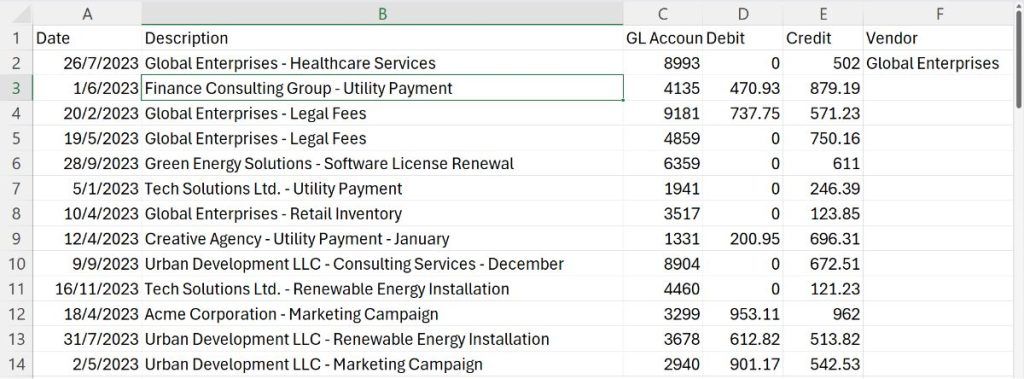
Excel recognises the pattern almost immediately and repeats it for the rest of the rows in the same column, following the same structure as the initial entry.
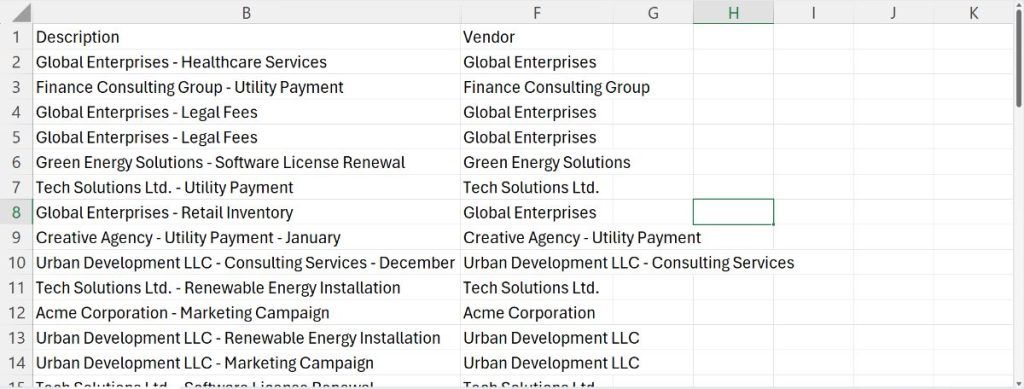
If the structure of the source cells is inconsistent, errors can occur. For example, here cells F9 and F10 were extracted incorrectly, including extra information such as the expense nature ("– Utility Payment").
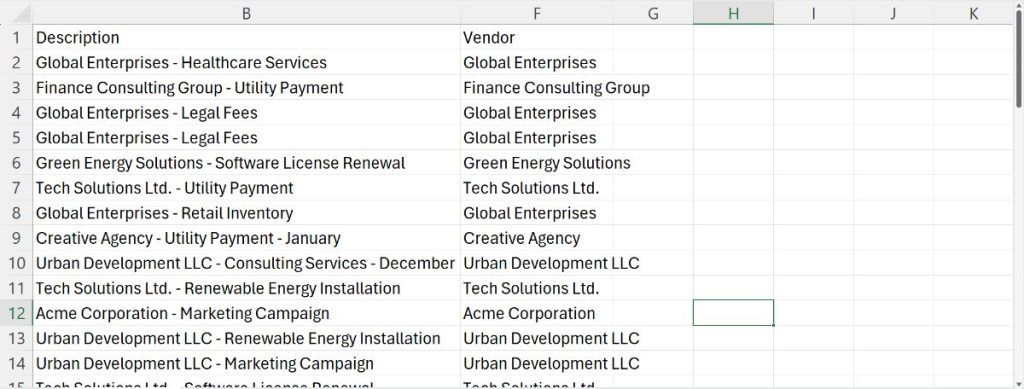
Do not be disappointed just yet, as Excel can learn from your corrections. Go to cell F9 and manually remove "– Utility Payment". As soon as you make the change, you notice a quick flash through the borders of the cells, indicating that Excel has recognised the correction. Instantly, cell F10 is updated to match the corrected pattern.
How does Analyze Data work?
For accountants who love working with PivotTables and charts but struggle with the setup, Analyze Data will help. It automatically analyses your data and offers suggestions to help you gain valuable insights.
To use it, go to the Home tab and click Analyze Data. This opens the Analyze pane on the right side of the screen. If one of the suggestions meets your needs, simply click "+ Insert PivotTable" or PivotChart. Without having to navigate the PivotTable setup manually, your PivotTable is inserted instantly.
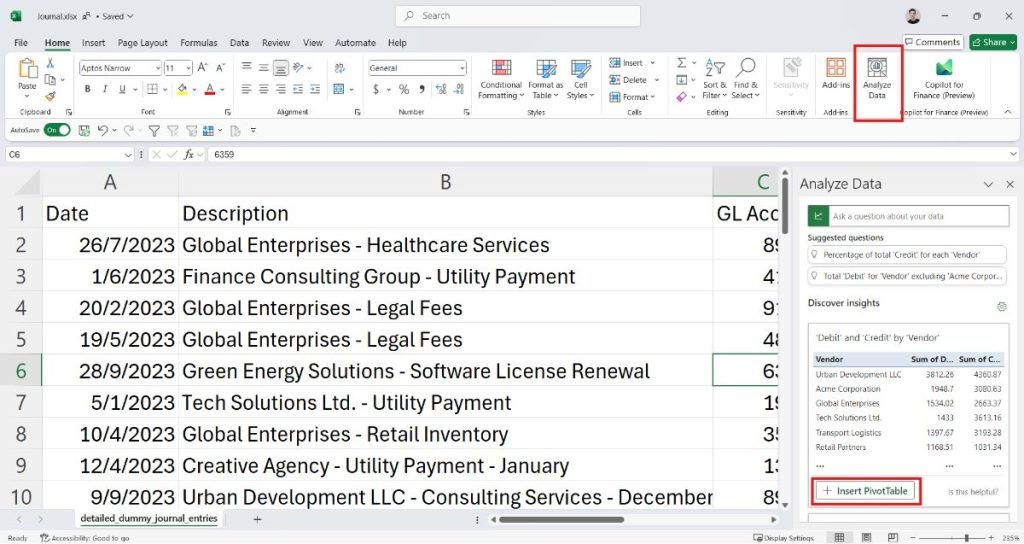
If none of the suggestions are suitable, you can ask a specific question to get the insights you need. For example:
Which are the top 3 vendors?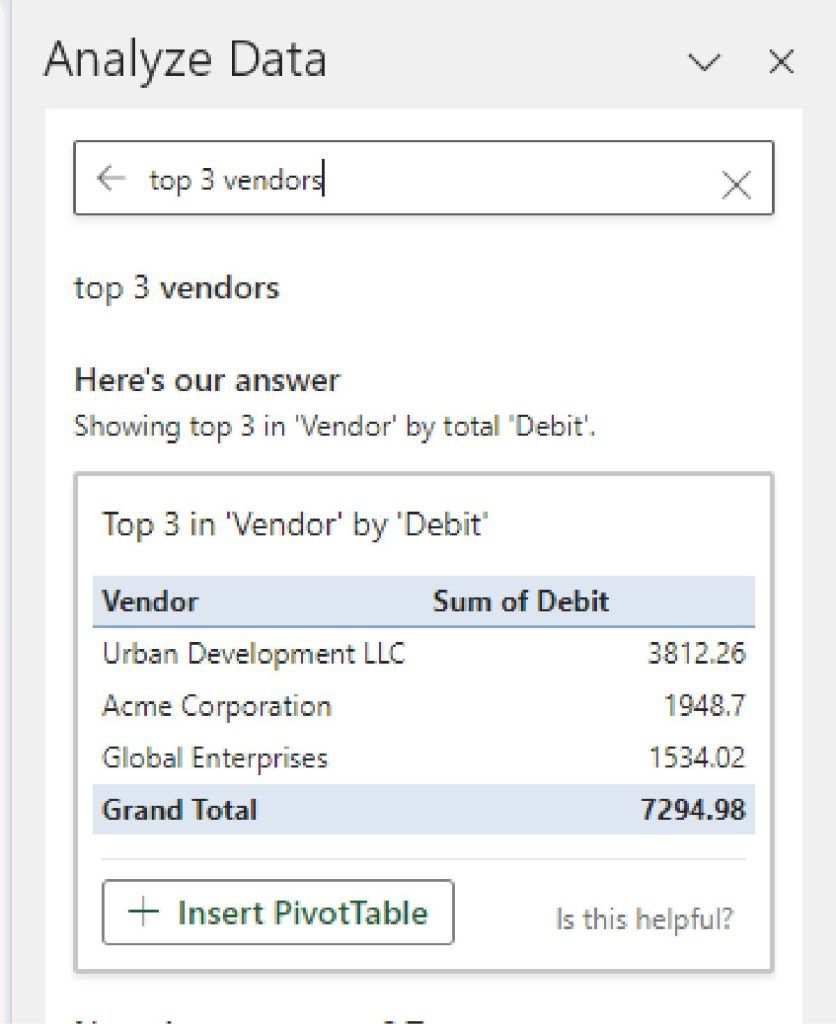
What are the limitations of Excel's built-in AI?
If you have been using mainstream AI services such as ChatGPT, Gemini or Copilot, you might find Excel's built-in AI features somewhat limited. While Flash Fill and Analyze Data provide a degree of intelligence, they fall short compared with the capabilities of more advanced AI platforms. Mainstream AI services are continually updated, offering more frequent enhancements and a broader range of features. They excel in areas such as:
- Natural language processing (NLP): AI services can better understand and process human language.
- Logical thinking: AI can reason and draw conclusions based on complex data inputs.
- Entity recognition: AI can identify and categorise specific entities, for example companies, products or financial terms, with greater accuracy than Excel's built-in features.
For tasks that require these higher-level AI capabilities, you will need to leverage third-party AI services. One option is to submit a prompt along with your data directly to these platforms, and then manually update your workbook with the response. Alternatively, you can integrate these AI services directly into Excel, allowing for seamless interaction.
How do you integrate third-party AI services into Excel?
Integrating Excel with external AI services can open up new possibilities. This can be done through APIs or by using add-ins that act as a bridge between Excel and the AI platform.
Using APIs to access AI in Excel
APIs allow different applications to communicate seamlessly with one another. By sending an API request from Excel to an AI service, you can receive AI-powered responses that enhance your data analysis or reporting processes.
For example, imagine you are working with unstructured text data, such as descriptions in financial records. An AI service could help you categorise transactions into the correct general ledger accounts based on the transaction descriptions, or even summarise the nature of these transactions. These types of tasks are beyond Excel's built-in capabilities but, with the integration of AI services, they become highly feasible.
However, implementing AI in Excel via APIs comes with some costs. You will likely need to pay a subscription fee for the AI service, usually in the form of tokens or usage credits. In addition, there will be development costs associated with creating the API connection. For those unfamiliar with programming or API development, this method may present a challenge and require technical assistance.
Using add-ins for AI in Excel
If you are not familiar with writing code or sending API requests, using an add-in is likely the simplest way to bring AI capabilities into Excel. Add-ins are pre-built tools that integrate directly with Excel's interface, allowing you to access AI functionality without needing much technical expertise.
To access add-ins, go to the Home tab and click Add-ins. You will be presented with a list of available add-ins.
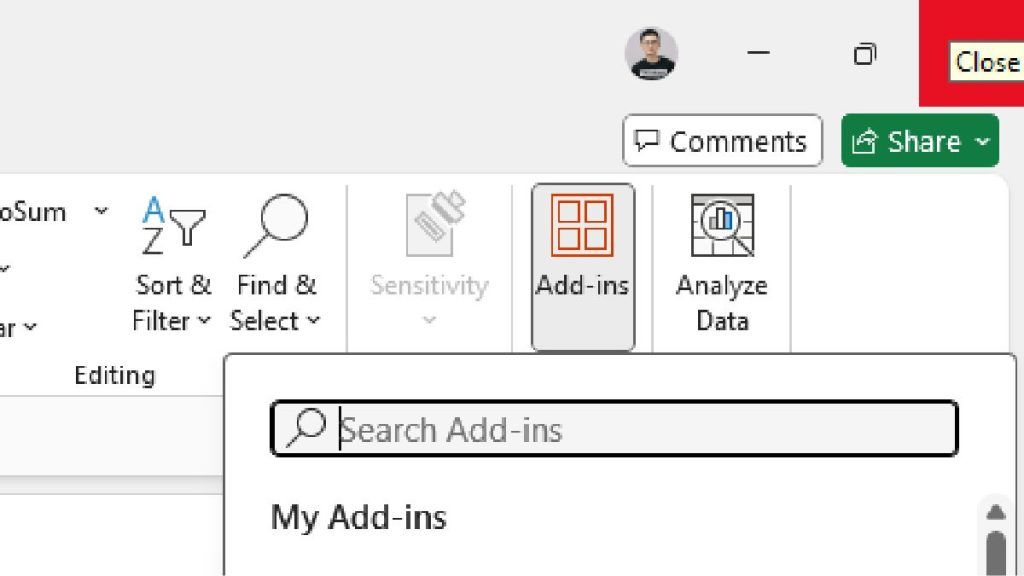
These add-ins can provide AI features such as data analysis, modelling and NLP, all without the need for coding. While some add-ins are free, others may come with a cost, so it is important to review their pricing and features before deciding which are most suitable for your needs.
Conclusion
AI in Excel is not just a futuristic idea; it is a reality that is already transforming the way accountants work. Whether through built-in features or by integrating external AI services, there are wide-ranging opportunities to improve productivity and accuracy. However, identifying the right use cases, and understanding where AI can truly make a difference, is crucial. Embracing the power of AI in the right areas will help you complement your accounting skills effectively and achieve meaningful improvements in efficiency.
Frequently asked questions
This information has been prepared for general informational purposes only and is not intended to be relied upon as accounting, tax, or other professional advice.
Related articles
articles
Automating the Final Mile of Report Generation
A beginner-friendly guide to using VBA in Excel to automate the final mile of report generation — decoupling a finished report from its working file so it is accurate, well formatted and ready to share.
articles
Sending Reports Via Email With VBA
A practical guide to automating report emails from Excel with VBA, using a named table and Outlook to send messages and attachments to a list of recipients in one click.
articles
Dynamic Array Formulas in Excel: Unleashing the Power
How Excel dynamic array formulas such as FILTER and XLOOKUP spill results across cells, so accountants can build scalable, error-resistant templates and audit working papers.